SLS · HTML5 interactives · Troubleshooting
Why is my HTML5 package blank in SLS?
A step-by-step way to find what SLS blocks, fix it inside your files, and test the fix on your own computer before you upload again.
By lookang15 September 2026Worked example: an Articulate Storyline 360 course exported as SCORM 1.2, in English, Malay, Chinese and Tamil
I uploaded a Storyline 360 course to SLS as an HTML5 interactive. On my computer it played perfectly. In SLS it showed a white box with a play button and a progress bar. Pressing play did nothing.
The course wasn’t broken. SLS runs uploaded packages under stricter rules than an ordinary web page, and my package broke three of them. The browser says exactly which rules were broken; you only need to know where to look. The same method works for any HTML5 package: exports from authoring tools, simulations, or pages you built yourself.
ConsoleDefault levelshtml.learning.moe.edu.sg
-
shortcuts.json?Policy=… Failed to load resource: the server responded with a status of 403 ()
SLS’s own page · ignore
-
tinymce.min.js:10 Uncaught TypeError: Cannot read properties of undefined (reading 'get')
SLS’s own page · ignore
-
54
Loading the font '<URL>' violates the following Content Security Policy directive: "font-src 'self'". The action has been blocked.
Fonts blocked
-
189
Loading media from '<URL>' violates the following Content Security Policy directive: "media-src 'self'". The action has been blocked.
Audio and video blocked
-
40
Loading media from 'data:video/mp4;base64,AAAAHGZ0eXBpc29t…' violates the following Content Security Policy directive: "media-src 'self'".
Audio and video blocked
-
9
Ignored call to 'confirm()'. The document is sandboxed, and the 'allow-modals' keyword is not set.
Pop-up ignored
-
SCORM error: Error - unable to acquire LMS API, content may not play properly and results may not be recorded.
The real blocker: no LMS
-
frame.desktop.min.js:2 Uncaught TypeError: Cannot read properties of undefined (reading 'progress')
Knock-on error
What Chrome’s console showed after my upload, trimmed. The number on the left is how many times Chrome grouped the same message. Two lines come from SLS itself and one is a knock-on error; every other line points at a rule my package broke.
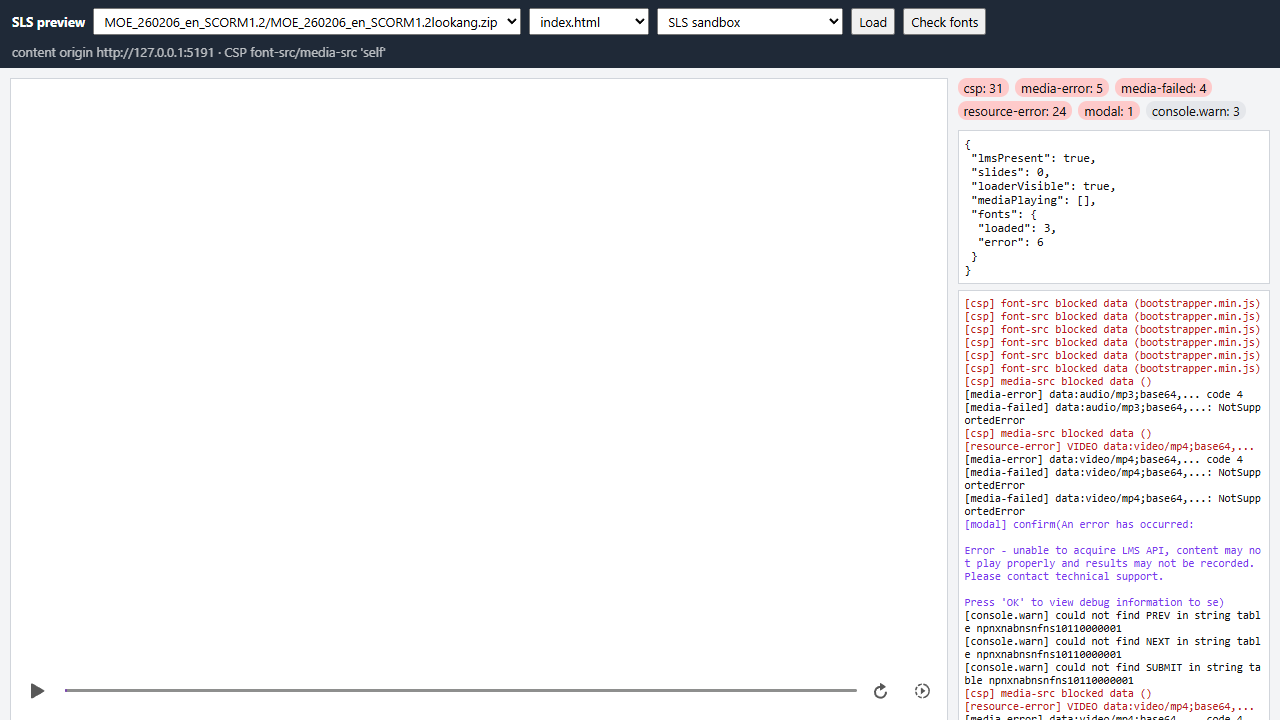 BeforeThe zip as I first uploaded it. No slide loads, 31 requests are blocked, 6 of 9 fonts fail, and the SCORM error sits inside a
 confirm() nobody ever sees.
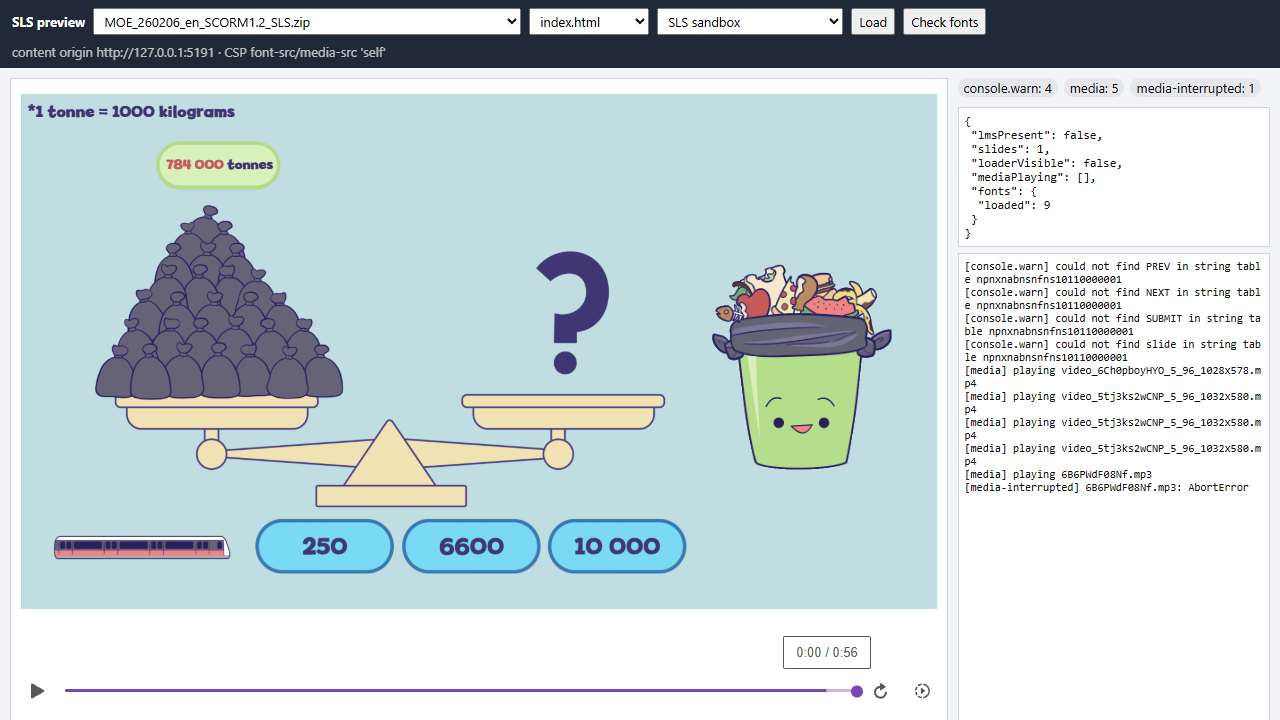 AfterThe fixed zip. The course starts, all 9 fonts load, the narration plays, and nothing is blocked. The one
 AbortError is Storyline pausing its own audio.
Both screenshots come from the local preview in Step 6, which applies SLS’s rules on my own computer.
How SLS runs your zip
Three things decide whether a package runs in SLS. The picture shows all three.
Your index.html runs in a sandboxed frame on html.learning.moe.edu.sg. Every request it makes is checked against the page’s Content-Security-Policy, and only files from your own zip (plus images made from data: or blob:) get through. A SCORM driver looking for an LMS finds nothing above the frame.
- A separate website and a sandbox
- Your files are served from
html.learning.moe.edu.sg and shown in a frame inside the SLS lesson page. The frame has no permission for pop-ups.
- A Content-Security-Policy
- A header sent with your
index.html that lists where fonts, media, scripts and data may come from. For fonts and media, the only allowed source is your own zip.
- No LMS
- An HTML5 interactive isn’t launched by an LMS. A package that waits for the SCORM API waits forever.
1Read the console and sort the messages
Open the SLS page with your interactive and press F12 (Cmd+Option+J on a Mac), then open the Console tab. Reload the page so you see messages from the very start.
Sort every red line into one of two piles:
- SLS’s own messages. They mention SLS files such as
shortcuts.json, tinymce.min.js or index-….js. Everyone sees these. Ignore them.
- Your package’s messages. They mention files from your zip, or the address
html.learning.moe.edu.sg.
Then match each message about your package to this table.
| If the message contains | It means | Go to |
|---|
unable to acquire LMS API or LMSInitialize | The package was started with its LMS launch file and is waiting for an LMS that isn’t there. | Step 3 |
"font-src 'self'" | A font is embedded as data: or comes from another website. | Step 5a |
"media-src 'self'" | Audio or video is embedded as data: or blob:, or comes from another website. | Step 5b |
"script-src …" or "style-src …" | A script or stylesheet comes from another website. | Step 5c |
"connect-src …" or "child-src 'self'" | The page fetches data from, or frames, another website. | Step 5d |
Ignored call to 'alert()', 'confirm()' or 'prompt()' | The sandbox switched off a pop-up dialog. | Step 5e |
Cannot read properties of undefined | Usually a knock-on error from a line above. Fix those first, then look again. | — |
One message you can safely leave: Storyline tries to send usage statistics to Articulate, and SLS stops it with Connecting to 'https://metrics.articulate.com/v1/import' violates … "connect-src …". It doesn’t affect the course. Setting suppressAnalytics: true in the launch file removes it.
2Open your package on its own and read SLS’s rules
The console on an SLS page mixes SLS’s messages with yours. Opening your package by itself gives you a clean console with the same rules.
- In DevTools, open the Network tab and reload the page.
- Type
html.learning in the filter box. The requests that appear are your files.
- Click
index.html, open Headers, and scroll to Response Headers. The content-security-policy header is the rulebook for your package.
- Right-click
index.html and choose Open in new tab. Your package now runs alone, under the same header.
This is the header SLS sent on 15 September 2026, split one rule per line so it’s easier to read:
content-security-policy:
  script-src 'self' 'unsafe-inline' 'unsafe-eval';
  object-src 'self';
  font-src 'self';
  style-src 'self' 'unsafe-inline';
  connect-src 'self' https://api.learning.moe.edu.sg;
  img-src 'self' data: blob:;
  child-src 'self';
  media-src 'self';
  default-src 'self';
  worker-src 'self' blob:
'self' means the website your package is served from — in practice, the files inside your zip. Here’s what each rule means for a package.
| Rule | Allowed | Blocked, for example |
|---|
font-src 'self' | Font files in your zip | Fonts embedded as data:, Google Fonts, other font services |
media-src 'self' | Audio and video files in your zip | Audio or video as data: or blob:, media hosted elsewhere |
script-src 'self' 'unsafe-inline' 'unsafe-eval' | Scripts in your zip, inline scripts, eval() | Scripts from CDNs |
style-src 'self' 'unsafe-inline' | Stylesheets in your zip, inline styles | Stylesheets from other websites, such as Google Fonts’ CSS |
img-src 'self' data: blob: | Images in your zip, data: and blob: images | Images from other websites |
connect-src 'self' https://api.learning.moe.edu.sg | fetch() and XHR to your own files and SLS’s API | Requests to any other website |
child-src 'self' | Frames showing pages from your zip | Frames showing other websites |
worker-src 'self' blob: | Web workers from your zip or blob: | Workers from other websites |
object-src, default-src 'self' | Anything else, from your zip | Anything else, from elsewhere |
The pop-up restriction isn’t in this header; it comes from the frame’s sandbox. The console line Ignored call to 'confirm()' is how you spot it.
SLS can change these rules. If what you see differs from this post, trust the header in front of you.
3Check which file SLS starts
SLS starts index.html at the top level of your zip. SCORM exports often don’t include one, so it’s tempting to copy a launch file and rename it. Choose carefully: an LMS launch file waits for an LMS forever.
A Storyline 360 SCORM export has two launch files:
| File | Setting inside | What it does | For SLS |
|---|
index_lms.html | lmsPresent: true | Loads lms/scormdriver.js, then waits for the LMS to answer | No |
story.html | lmsPresent: false | Starts the course straight away | Yes |
That was my mistake. I had copied index_lms.html to index.html. The SCORM driver searched the frames above it for the LMS’s API object, found nothing, and never told Storyline to load the first slide. The play button, the progress bar and the knock-on error were all that was left.
Quick fix
Copy story.html and name the copy index.html. The course runs without SCORM tracking — there’s no LMS in the frame to track it anyway.
Fix that keeps LMS tracking
If the same zip must also work in an LMS, make the launch file check for the LMS first. In index_lms.html, replace lmsPresent: true, with:
lmsPresent: (function (win) {
  // true only when an LMS has put a SCORM 1.2 API object in a frame above this page
  for (var i = 0; win && i < 500; i++) {
    try { if (win.API) { return true; } } catch (e) { /* another website's frame: keep looking */ }
    if (win.parent === win) { break; }
    win = win.parent;
  }
  return false;
})(window),
Then replace the line that loads the driver, <script src="lms/scormdriver.js" charset="utf-8"></script>, with:
<script>
  // load the SCORM driver only when an LMS was found
  if (window.globals.lmsPresent) {
    document.write('<script src="lms/scormdriver.js" charset="utf-8"><\/script>');
  }
</script>
Save the edited file as both index_lms.html and index.html. In an LMS the check finds the API and tracking works as before; in SLS it finds nothing and the course starts as a normal web page. If your LMS opens courses in a new window, also check window.opener — the converter in the Storyline shortcut below does.
Other tools that export SCORM usually have the same split: one launch file for an LMS and one for plain web. Use the plain web one for SLS.
4Search your package for what SLS blocks
Unzip the package and open the folder in VS Code, or any editor that can search a whole folder. Press Ctrl+Shift+F (Cmd+Shift+F on a Mac), turn on regular expressions with the .* button, and try each search below. Minified files have very long lines, so go by file names and match counts rather than reading the lines.
| Search for | What it finds | Fix |
|---|
data:(font|application/(x-)?font) | Fonts embedded in CSS or JavaScript | 5a |
data:(audio|video)/ | Audio or video embedded in HTML or JavaScript | 5b |
blob:|createObjectURL | Media made in the browser, which an audio or video element can’t play here | 5b |
(src|href)=["']https?:// | Scripts, styles, media or frames loaded from other websites | 5c, 5d |
fetch\(|XMLHttpRequest | Requests that may go to other websites | 5d |
\b(alert|confirm|prompt)\( | Pop-up dialogs | 5e |
lmsPresent|scormdriver|LMSInitialize | LMS launch code | 3 |
Prefer the command line? In Git Bash (it comes with Git for Windows) or a Linux terminal, run these from the package folder:
# embedded fonts, audio and video
grep -rnoE "data:(font|application/(x-)?font)[^;,]*|data:(audio|video)/[a-z0-9.+-]+" --include=*.css --include=*.js --include=*.html .

# files loaded from other websites
grep -rnoE "(src|href)=[\"']https?://[^\"']+" --include=*.html --include=*.js .

# pop-up dialogs
grep -rnoE "\b(alert|confirm|prompt)\(" --include=*.js --include=*.html .
The Content-Security-Policy doesn’t apply to links students click (<a href>); it applies to everything the page loads by itself. Focus on those.
5Fix what you found
Each fix moves something into your zip, or replaces something the sandbox switches off. Do it in your own files: when I fetched my uploaded files back from SLS, it had already moved some of Storyline’s fonts and clips into files by itself, but it hadn’t fixed the launch file, and you can’t count on that help for other tools.
5aFonts embedded as data:
Save each font as a file and point the CSS at it. This short Node.js script does it for one CSS file. Install Node.js from nodejs.org, save the script as extract-fonts.js, and run it with the CSS file’s path.
extract-fonts.js
// extract-fonts.js: move data: fonts out of a CSS file into font files
// usage: node extract-fonts.js path/to/style.css
const fs = require('fs');
const path = require('path');

const cssFile = process.argv[2];
const fontDir = path.join(path.dirname(cssFile), 'fonts');
fs.mkdirSync(fontDir, { recursive: true });

let count = 0;
const css = fs.readFileSync(cssFile, 'utf8').replace(
  /url\(\s*(['"]?)data:([^;,]*font[^;,]*);base64,([^'")]+)\1\s*\)/gi,
  (match, quote, type, base64) => {
    const ext = /woff2/i.test(type) ? 'woff2' : /woff/i.test(type) ? 'woff'
      : /otf|opentype/i.test(type) ? 'otf' : 'ttf';
    const name = `font${++count}.${ext}`;
    fs.writeFileSync(path.join(fontDir, name), Buffer.from(base64.replace(/\s+/g, ''), 'base64'));
    return `url('fonts/${name}')`;
  });

fs.writeFileSync(cssFile, css);
console.log(`Moved ${count} font(s) into ${fontDir}`);
node extract-fonts.js html5/data/css/output.min.css
It writes font1.woff, font2.woff… into a fonts folder next to the CSS file and rewrites each url(…) to match. A stylesheet looks for relative paths next to itself, so the fonts now load from your zip. On my Storyline export it moved 6 fonts.
Using Google Fonts or another font service? Download the font files (Google Fonts offers a download for each family), put them in your zip, and write your own @font-face rules instead of linking to the service.
media-src 'self' accepts only real files. Save the clip as a file and use its path instead. For base64 clips inside JavaScript, this script does it.
extract-media.js
// extract-media.js: move data: audio and video out of a JavaScript file into media files
// usage, from the folder that contains index.html: node extract-media.js path/to/script.js
const fs = require('fs');

const jsFile = process.argv[2];
fs.mkdirSync('media', { recursive: true });

let count = 0;
const js = fs.readFileSync(jsFile, 'utf8').replace(
  /(["'])data:(audio|video)\/([\w.+-]+);base64,\s*([A-Za-z0-9+/=]+)\1/g,
  (match, quote, kind, subtype, base64) => {
    const ext = subtype === 'mpeg' ? 'mp3' : subtype;
    const name = `media/${kind}${++count}.${ext}`;
    fs.writeFileSync(name, Buffer.from(base64, 'base64'));
    return quote + name + quote;
  });

fs.writeFileSync(jsFile, js);
console.log(`Moved ${count} clip(s) into ./media`);
node extract-media.js html5/lib/scripts/bootstrapper.min.js
Run it from the folder that contains index.html: an audio or video element looks for a relative path next to the page, not next to the script. In Storyline exports, bootstrapper.min.js holds two tiny silent clips, TINY_AUDIO and TINY_VIDEO, which the player plays to get its audio and video ready. While they’re blocked, those players can’t get ready.
If your page makes sound in the browser — a recording, text-to-speech, generated tones — and plays it from a blob: address, play it with the Web Audio API instead. Decoded audio played through an AudioContext isn’t loaded as media, so media-src doesn’t apply.
5cScripts, styles and fonts from other websites
Download each file into your package, for example into a lib folder, and point the tag at the copy.
<!-- blocked: loads from another website -->
<script src="https://cdn.example.com/library/2.1.0/library.min.js"></script>

<!-- works: a file inside your zip -->
<script src="lib/library.min.js"></script>
Some libraries fetch more files once they’re running, such as fonts, language files or workers. Search the downloaded library for https:// and bring those files in as well.
5dData and pages from other websites
connect-src allows only your own files and SLS’s api.learning.moe.edu.sg; child-src allows only your own pages.
- Put the data your page needs inside the zip, as a
.json file (fetch('data/questions.json') still works) or as a .js file that sets a variable.
- Don’t embed YouTube, Google Forms or other websites inside the package. Add them to the SLS lesson as separate components instead.
5ePop-up dialogs
In the sandbox, alert() does nothing, confirm() returns false as if the student pressed Cancel, and prompt() returns null. Replace them with something on the page.
// before: never shown in SLS, so restart() never runs
if (confirm('Start again?')) { restart(); }

// after: a visible button asks instead
document.querySelector('#restart').addEventListener('click', restart);
If a dialog only reported errors to developers, log them instead with console.error(message). That’s what I did with the SCORM driver’s error pop-up.
6Test with SLS’s rules on your computer
Uploading and reloading SLS for every attempt is slow. This server reproduces the parts that matter: your files come from one address with SLS’s Content-Security-Policy, and a page on a different address shows them in a sandboxed frame without pop-ups.
sls-test.js
// sls-test.js: show an unzipped package the way SLS does
// usage: node sls-test.js path/to/unzipped-package   then open http://localhost:8080
const http = require('http');
const fs = require('fs');
const path = require('path');

const root = path.resolve(process.argv[2] || '.');
const CSP = "script-src 'self' 'unsafe-inline' 'unsafe-eval'; object-src 'self'; font-src 'self'; " +
  "style-src 'self' 'unsafe-inline'; connect-src 'self' https://api.learning.moe.edu.sg; " +
  "img-src 'self' data: blob:; child-src 'self'; media-src 'self'; default-src 'self'; worker-src 'self' blob:";
const TYPES = {
  '.html': 'text/html', '.js': 'text/javascript', '.css': 'text/css', '.json': 'application/json',
  '.png': 'image/png', '.jpg': 'image/jpeg', '.gif': 'image/gif', '.svg': 'image/svg+xml',
  '.mp3': 'audio/mpeg', '.wav': 'audio/wav', '.mp4': 'video/mp4', '.webm': 'video/webm',
  '.woff': 'font/woff', '.woff2': 'font/woff2', '.ttf': 'font/ttf', '.otf': 'font/otf',
};

// Your package with SLS's rules, on its own address (like html.learning.moe.edu.sg)
http.createServer((req, res) => {
  const file = path.join(root, decodeURIComponent(new URL(req.url, 'http://x').pathname));
  const inside = file === root || file.startsWith(root + path.sep);
  if (!inside || !fs.existsSync(file) || fs.statSync(file).isDirectory()) {
    res.writeHead(404);
    return res.end('Not found');
  }
  res.writeHead(200, {
    'Content-Type': TYPES[path.extname(file).toLowerCase()] || 'application/octet-stream',
    'Content-Security-Policy': CSP,
  });
  fs.createReadStream(file).pipe(res);
}).listen(8081, '127.0.0.1');

// A "lesson page" on a different address that shows the package in a sandboxed frame
http.createServer((req, res) => {
  res.writeHead(200, { 'Content-Type': 'text/html' });
  res.end('<!doctype html><title>SLS test</title><body style="margin:0">' +
    '<iframe src="http://127.0.0.1:8081/index.html" style="border:0;width:100vw;height:100vh" ' +
    'sandbox="allow-scripts allow-same-origin allow-popups allow-forms"></iframe>');
}).listen(8080, () => console.log('Open http://localhost:8080 and press F12'));
Unzip your fixed package, then run the script with that folder:
node sls-test.js path/to/unzipped-package
Open http://localhost:8080, press F12 and reload. A clean result has no red Content Security Policy messages and no Ignored call to … lines, and the interactive works the way it does on your computer. My hand-fixed Storyline course played in it, and the only Content Security Policy message left was the harmless Articulate statistics line from Step 1.
It isn’t SLS, so check the console once more after you upload. But it catches blank-screen problems in seconds instead of an upload cycle.
For zips I use a fuller version, sls_preview_server.js. It plays zip files directly, lists errors beside the player, checks that every font loads, and can pretend to be an LMS so you can confirm SCORM tracking still works. The screenshots at the top come from it.
7Zip it the way SLS expects, upload, check again
- Open the package folder and select everything inside it:
index.html and the folders next to it (for Storyline: html5, lms, mobile, story_content and the rest).
- Zip that selection. Don’t zip the folder itself —
index.html must sit at the top level of the zip, not inside a subfolder.
- Upload the zip, open the interactive in SLS, and repeat Step 1. The only red lines left should be SLS’s own.
Storyline shortcut: one command
For Storyline 360 SCORM exports, my converter applies Steps 3 to 5 in one go. I’ve used it on exports from Storyline 360 versions 3.109 and 3.111.
node storyline_to_sls.js MyCourse_SCORM1.2.zip
It writes MyCourse_SCORM1.2_SLS.zip next to the original and lists what it changed:
MyCourse_SCORM1.2.zip -> MyCourse_SCORM1.2_SLS.zip
  - index_lms.html + index.html: SCORM API detected at runtime, standalone player when absent
  - analytics beacon to metrics.articulate.com disabled (blocked by SLS CSP)
  - html5/data/css/output.min.css: 6 embedded font(s) -> html5/data/css/fonts/font1.woff, …
  - html5/lib/scripts/bootstrapper.min.js: base64 media -> html5/lib/media/tiny.mp4, html5/lib/media/tiny.mp3
  - lms/scormdriver.js: DisplayError uses console.error instead of confirm() (sandboxed iframe)
  - imsmanifest.xml: listed 9 new file(s)
The zip stays a valid SCORM 1.2 package: in an LMS it tracks as before, and in SLS it plays as a web page. It needs Node.js 22.2 or newer and nothing else. I converted all four language versions of my course; each plays under SLS’s rules with nothing blocked, and every font loads — 9 in the English and Malay versions, 13 in Chinese and 17 in Tamil.
Get it here: storyline_to_sls.js.
Checklist before you upload
index.html is at the top level of the zip.index.html is a plain web launch file, or checks for an LMS before waiting for one.- The Step 4 searches find no
data: fonts, audio or video.
- Nothing loads from another website: scripts, styles, fonts, data or frames.
- No
alert(), confirm() or prompt() that students need to answer.
- The local test in Step 6 shows no red Content Security Policy messages.
What I took away
A blank interactive in SLS feels mysterious, but it isn’t. The console names the rule that was broken, and the rulebook is a single header you can read yourself. Fix the files, test under the same rules, and the upload that showed a white box simply plays.